
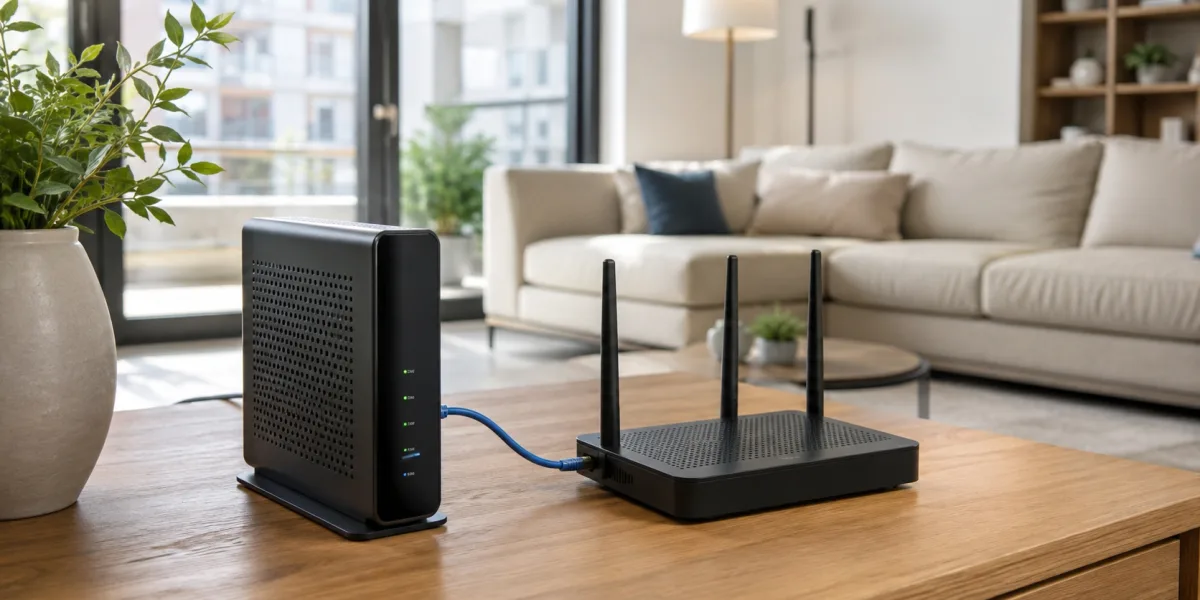
Connecting a modem and router may look simple, but small mistakes can stop your internet from working properly. Many users see WiFi on their phone but still cannot open websites because the router is broadcasting a network without receiving internet from the modem.
To avoid this issue, you need to connect both devices in the correct order. The modem must communicate with the internet provider first, and then the router can distribute that connection. This guide explains how to install modem & router correctly before linking it with your router.
Know the Internet Connection Path
Your internet follows a simple path. The provider line enters your home and connects to the modem. The modem sends that connection to the router through an Ethernet cable. The router then shares the connection with your devices through WiFi or Ethernet.
If this order is broken, your internet may not work. For example, if the router is turned on before the modem is ready, it may fail to receive a proper connection. Restarting both devices in the right order often solves this problem.
Inspect the Modem Cable
Start by checking the cable that connects to your modem. For fiber internet, make sure the fiber cable is not bent sharply. For cable internet, check that the coaxial connector is secure. For DSL, make sure the phone-style line is plugged into the correct port.
A loose cable can cause slow speed, frequent disconnections, or no internet. Before changing settings, always check the physical connection first. Many internet problems come from simple cable issues.
Power On the Modem First
Plug the modem into power and turn it on. Wait for the lights to stabilize. This may take two to five minutes depending on the device and provider. The internet, online, or broadband light should become steady.
Do not connect the router until the modem is ready. If the modem does not show an active connection, the router will not be able to provide internet. In that case, contact your provider or check whether your service is active.
Connect the Router Through the WAN Port
Once the modem is online, connect an Ethernet cable from the modem’s Ethernet port to the router’s WAN or Internet port. The WAN port is designed to receive internet from the modem. The LAN ports are used for wired devices after setup.
After connecting the cable, turn on the router. Wait until the router finishes starting. The internet light should turn on or become stable. If it does not, check the cable and confirm that it is connected to the WAN port.
Create Your WiFi Network
Use a phone, laptop, or router app to open the setup page. The default WiFi name and login details are usually printed on the router label. Follow the setup instructions to create your own WiFi name and password.
Choose a password that is strong and not easy to guess. Avoid using names, birthdays, or simple numbers. A secure WiFi password protects your internet speed and helps prevent unauthorized access.
Test the Connection
After setup, connect your phone or laptop to the WiFi. Open several websites and test a video stream. If everything works near the router, move to other rooms and check the connection again.
If the connection is weak in certain rooms, the issue may be WiFi coverage. Move the router to a more open position or consider using a mesh WiFi system. If the internet does not work anywhere, restart both devices.
Troubleshoot No Internet Issues
If WiFi appears but internet does not work, turn off both devices. Wait one minute. Turn on the modem first and wait until the internet light is stable. Then turn on the router and wait for WiFi to return.
Also check the Ethernet cable between both devices. Try another cable if available. A damaged Ethernet cable can stop the router from receiving internet even when the modem is working properly.
Final Thoughts
The right modem and router connection depends on order, cable quality, and correct ports. The modem should connect to the provider first, and the router should receive internet through the WAN port.
Once connected properly, your home network becomes easier to manage and more reliable for everyday use. A careful setup can prevent many common internet problems.


