
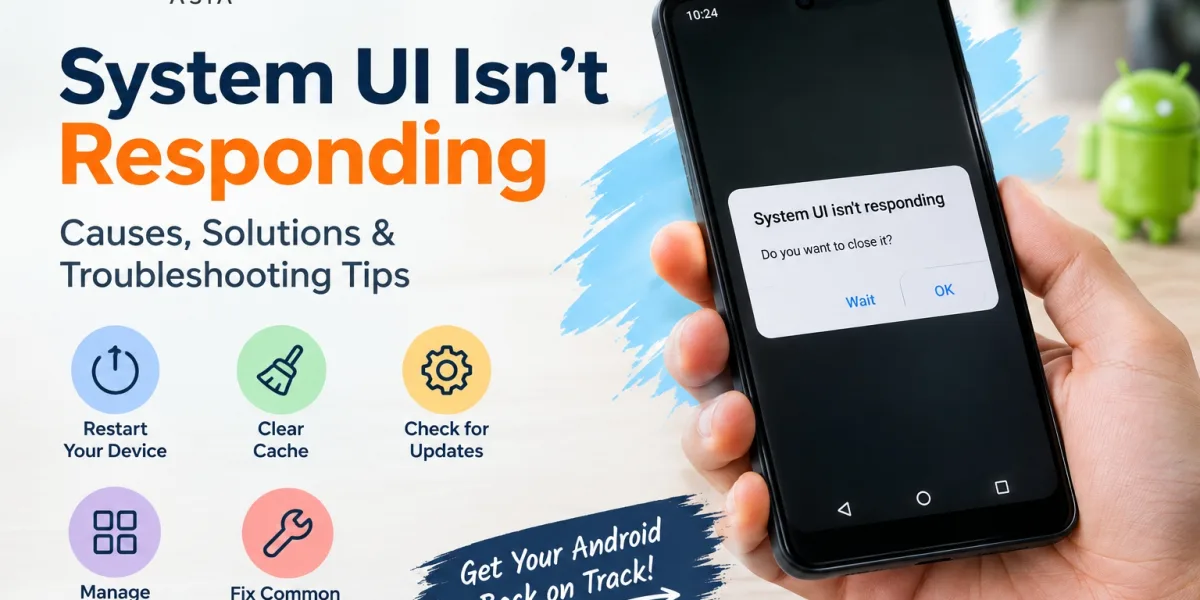
Android smartphones make everyday tasks convenient, but unexpected errors can interrupt the user experience. One common issue is system ui isn t responding, which may cause the screen to freeze, navigation buttons to stop working, or applications to become temporarily unresponsive. Understanding the possible causes and following simple troubleshooting steps can help restore your phone’s normal performance.
What Does System UI Isn’t Responding Mean?
System UI is an essential part of the Android operating system responsible for displaying interface elements such as the status bar, notification panel, navigation controls, and lock screen. When this component stops responding, Android may display an error message asking you to wait or close the affected process.
Although the message can be frustrating, it does not necessarily mean your smartphone is permanently damaged. In many cases, the issue results from temporary software glitches, insufficient storage, or conflicts between applications.
Common Reasons Behind the Error
Several factors can trigger the system ui isn t responding message on an Android device.
- Insufficient storage: When your phone has very little free space, system performance may become unstable.
- Outdated software: Older Android versions or applications may contain bugs that affect system functionality.
- Problematic applications: Newly installed launchers, widgets, themes, or other apps may conflict with Android's interface.
- Temporary system glitches: Background processes and memory-related issues can occasionally cause the interface to freeze.
- Corrupted cache files: Damaged temporary files may affect the performance of certain applications or system components.
Identifying the possible cause makes it easier to choose an appropriate solution.
How to Fix System UI Isn’t Responding
1. Restart Your Smartphone
Restarting your device is one of the simplest troubleshooting methods. It refreshes running processes and can resolve temporary software issues. If the screen is frozen, use the restart or force-restart method recommended by your phone manufacturer.
2. Free Up Storage Space
Check your device storage settings and remove unnecessary downloads, duplicate files, and unused applications. Keeping sufficient free space allows Android to operate more efficiently.
3. Update Android and Applications
Open your phone's settings to check for available system updates. Also, visit the Google Play Store and update installed applications. Software updates may include bug fixes and compatibility improvements.
4. Check Recently Installed Apps
If the error started after installing an application, consider uninstalling that app temporarily. You can also test your device in Safe Mode, where downloaded apps are generally disabled, to determine whether a third-party application is contributing to the problem.
5. Clear App Cache Carefully
For applications that appear to be causing problems, open Settings, select Apps, choose the relevant application, and look for the storage options. Clear the cache if available. Menu names vary between Android manufacturers, so avoid clearing system data unless you understand the consequences.
Conclusion
The system ui isn t responding error can interrupt daily smartphone activities, but several practical troubleshooting steps may help resolve it. Restarting the phone, freeing storage, updating software, and checking problematic applications are useful starting points. If the error continues frequently, back up important data and contact the device manufacturer's support team before attempting a factory reset.


