
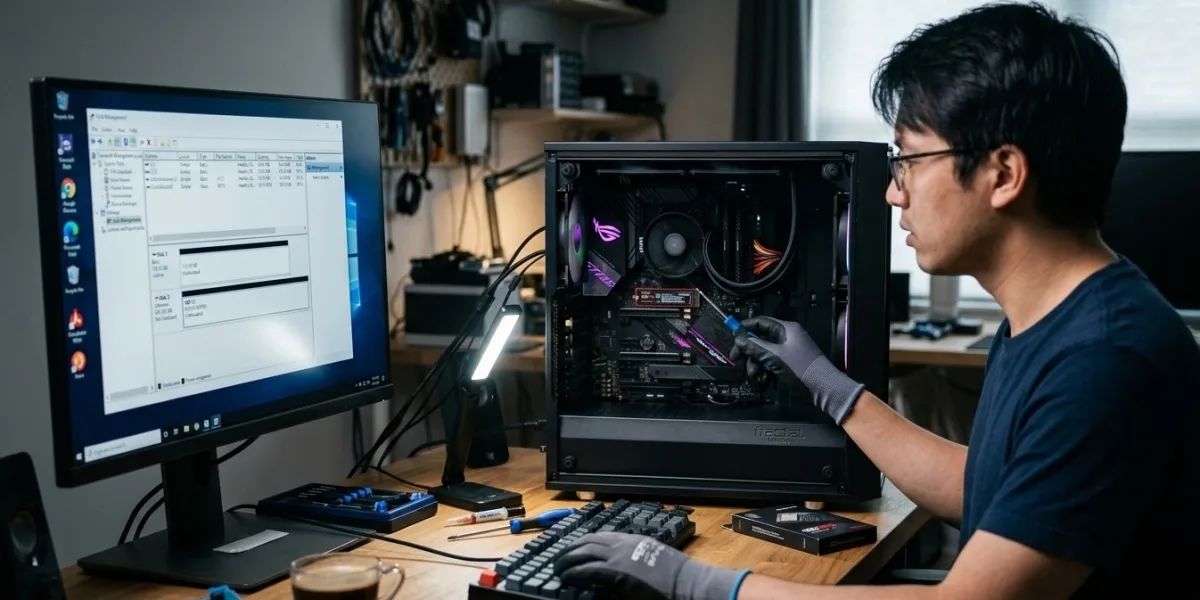
Installing a new SSD is one of the best ways to improve a computer’s storage capacity, boot speed, and overall responsiveness. However, it can be frustrating when your computer fails to recognize the newly installed drive. The SSD may be physically connected but missing from File Explorer, Disk Management, or even the system BIOS. If you are searching for computer repair Albany, professional laptop repair Albany, or reliable computer repair Albany NY services, understanding why an SSD is not detected can help you identify the problem and determine when professional assistance is needed.
Fortunately, an undetected SSD does not always mean the drive is defective. Connection problems, incorrect BIOS settings, missing partitions, incompatible hardware, and outdated drivers can all prevent a computer from recognizing a new storage device.
Check Whether the SSD Is Properly Connected
The first step is to verify the physical connection.
For a SATA SSD, check both the SATA data cable and power connection. A loose or damaged cable can prevent the drive from appearing in Windows.
For an M.2 SSD, make sure the drive is correctly inserted into the appropriate M.2 slot and secured with the mounting screw. M.2 drives can look properly installed even when they are not fully seated.
Before opening a desktop computer or laptop, shut the system down completely and disconnect the power source. If you are uncomfortable working inside the computer, it is safer to have a qualified technician inspect the installation.
Make Sure the SSD Is Compatible
Not every SSD works with every computer.
M.2 SSDs can use different interfaces, including SATA and NVMe. Although they may have similar physical dimensions, the computer's M.2 slot may support only a specific type.
For example, installing an NVMe SSD into an M.2 slot designed only for SATA storage may result in the drive not being detected.
Check your computer or motherboard specifications to determine which SSD types and storage interfaces are supported. Compatibility should be confirmed before purchasing or installing a replacement drive.
Check Disk Management in Windows
Sometimes Windows recognizes the SSD but does not display it in File Explorer.
Open Disk Management and look for the newly installed drive.
If the SSD appears there but does not have a drive letter, you may simply need to assign one. If the drive shows as unallocated, it may need to be initialized and partitioned before Windows can use it.
A new SSD commonly requires setup before it becomes available for storing files.
However, be careful when working with Disk Management. If the drive contains important data, initializing, formatting, or deleting partitions can result in data loss. Make sure you have identified the correct disk before making changes.
Initialize the New SSD
A brand-new SSD may appear in Disk Management as an uninitialized disk.
Windows may ask you to choose a partition style, commonly GPT or MBR. Modern computers generally use GPT, particularly systems configured with UEFI firmware.
After initialization, the drive still needs a partition and file system before it can normally be used.
For a completely new SSD with no important data, creating a new volume and formatting it may make the drive accessible through File Explorer.
If the SSD previously contained important information, stop before formatting it and consider professional Data Recovery Services instead.
Check BIOS or UEFI Settings
If the SSD does not appear in Windows or Disk Management, check whether the computer's BIOS or UEFI firmware recognizes it.
Restart the computer and enter the firmware setup using the appropriate key for your system. The exact key varies between manufacturers.
Look under storage, boot, or hardware information sections for the newly installed SSD.
If the drive appears in BIOS but not Windows, the problem may involve partitioning, drivers, Windows configuration, or the file system.
If the SSD does not appear in BIOS either, the issue is more likely related to compatibility, physical installation, firmware settings, or the drive itself.
Check Storage Controller and BIOS Settings
Certain BIOS settings can affect how storage devices are detected.
Storage controller configurations such as SATA mode can influence whether a drive is properly recognized by the operating system. Changing BIOS settings without understanding their purpose can also cause an existing Windows installation to stop booting.
For this reason, avoid changing storage settings randomly.
If the computer was previously working correctly, document the current settings before making changes. If you are uncertain, professional diagnostics can prevent accidental configuration problems.
Update Storage and Chipset Drivers
Windows relies on drivers to communicate with various hardware components.
An outdated chipset driver, storage controller driver, or motherboard firmware can occasionally cause problems with newly installed storage hardware.
Check the computer manufacturer's support resources for appropriate chipset and storage-related drivers. For desktops, motherboard manufacturer resources may provide the necessary updates.
Only install drivers designed for your exact hardware and operating system.
If the SSD is recognized after updating the appropriate drivers, the problem may have been software-related rather than a defective drive.
Check for a Firmware Update
SSD firmware can affect compatibility, stability, and performance.
Manufacturers sometimes release firmware updates that resolve compatibility issues or improve drive reliability. However, firmware updates should be performed carefully.
Interrupting a firmware update or installing the wrong firmware can potentially create serious problems.
Before updating, confirm the exact SSD model and follow the manufacturer's instructions. If the drive contains important data, make sure you have a reliable backup first.
Consider a Faulty SSD or Connection
If the SSD still cannot be detected after checking installation, compatibility, BIOS settings, and Windows configuration, the drive or connection may be defective.
Try the SSD in another compatible system if possible. You can also test a known-good SSD in the original computer.
This process can help determine whether the problem follows the SSD or remains with the computer.
A faulty M.2 slot, SATA port, cable, motherboard component, or SSD can all produce similar symptoms.
Check Whether the Drive Has a Drive Letter
An SSD may be visible in Disk Management but missing from File Explorer because Windows has not assigned a drive letter.
If the disk contains no important information and has already been correctly initialized and formatted, assigning an available drive letter may resolve the issue.
Do not change partitions or format the disk simply because it is missing from File Explorer. First determine whether the SSD contains existing data that needs to be preserved.
When Professional SSD Troubleshooting Is Necessary
If your computer still cannot detect the SSD after basic checks, professional diagnostics can save time and prevent unnecessary hardware replacements.
Experienced computer repair Albany technicians can inspect the SSD installation, motherboard connections, BIOS settings, storage configuration, and Windows environment to identify the actual cause.
Professional laptop repair Albany services can be particularly useful when an M.2 SSD needs to be installed inside a compact laptop where accessing internal components requires specialized tools and careful handling.
For customers seeking dependable computer repair Albany NY services, professional assistance can also help determine whether an SSD, motherboard, connector, or software configuration is responsible for the problem.
How to Prevent SSD Installation Problems
Before installing an SSD, confirm compatibility with your computer. Back up important data before making hardware or partition changes, and use the correct installation procedure for your device.
Keep your operating system, chipset drivers, BIOS or UEFI firmware, and SSD firmware appropriately updated. Avoid unnecessary BIOS changes and never format a drive until you are certain that it does not contain important information.
Regular backups are especially important because even reliable SSDs can eventually fail.
Conclusion
A computer that cannot read a newly installed SSD does not necessarily have a defective drive. Loose connections, incompatible interfaces, missing partitions, incorrect drive configuration, BIOS settings, outdated drivers, and hardware faults can all prevent an SSD from appearing.
Start by checking the physical installation and compatibility, then look in BIOS and Disk Management before making any changes that could affect your data. If the drive remains undetected or contains important files, professional assistance is often the safest choice.
Trusted computer repair Albany, experienced laptop repair Albany, and reliable computer repair Albany NY professionals can diagnose SSD installation problems accurately, protect important data, and help ensure your new storage drive works properly and reliably.


